What Is “Size Order” Mode?
TextTree’s folder view has two display modes: List and Size Order. When a folder is selected and its contents appear on the right, click the toggle button in the upper-right corner to switch to Size Order mode.
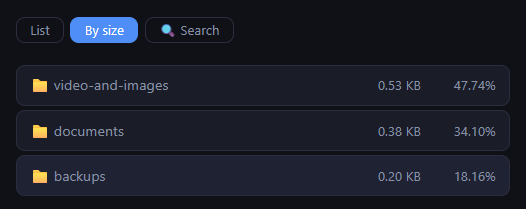
In Size Order mode, TextTree recursively scans all subfolders and files, then displays them sorted from largest to smallest.
| Column | Description |
|---|---|
| Size (KB / MB) | Total size of the file or folder |
| % of parent | The item’s share of the parent folder’s total size |
Folders appear before files, and each group is sorted by size descending.
How to Use It
1. Open the folder you want to inspect
Register the root folder on the index screen and open TextTree.
2. Click the target folder in the tree
Click the folder whose contents you want to check. Its contents appear as a list on the right.
3. Switch the toggle to “Size Order”
Click the toggle button in the upper-right of the folder view. TextTree scans the folder and re-sorts the list by size.
4. Drill down by clicking large subfolders
Click any subfolder in the list to see its contents sorted by size. Repeat this to trace exactly where disk space is being used.
When to Use It
- Running low on disk space — Quickly find where large backup files or videos have accumulated.
- Cleaning up a project folder — Spot surprisingly large subfolders and decide what can be removed.
- Managing a shared drive — Open a shared folder in TextTree and see at a glance which areas are taking up the most space.
Notes
- The size calculation runs at scan time. After deleting or moving files, click the folder again to refresh the results.
- Folders and file patterns excluded in app settings are also excluded from the size calculation.