What is Snap Layout?
In TextTree, you can open multiple text files side by side in the right panel at the same time. Snap Layout lets you save that arrangement under a name and restore it with a single click later.
Instead of manually reopening the same files every time you switch tasks, you can jump straight to the right setup.
When is it useful?
Here are a few examples:
- “Morning setup” snap — save your journal and task list side by side, ready to open every morning
- “KPT review” snap — save this week’s and last week’s KPT files open together for comparison
- “Writing mode” snap — save an outline and a draft open side by side for focused writing sessions
Snaps are managed per folder, so layouts for different projects stay separate.
Opening multiple files side by side
Ctrl+click a file in the tree to add it as a new pane without closing the ones already open. The maximum number of panes open at once is set in Settings under “Max panes” (default: 3).
Use the buttons at the top of the right panel to switch between stacked (vertical) and side-by-side (horizontal) layouts.
Saving a snap
Once your pane arrangement looks the way you want it, click the snap bar (the thin strip at the bottom of the tree panel) to open the snap panel. Enter a name and click Save to store the current layout.
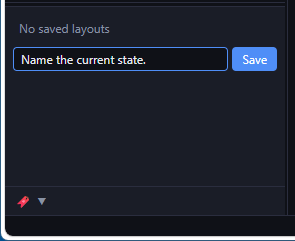
What gets saved:
- Which files are open and in what order
- Pane split direction (vertical / horizontal) and size ratios
- Tree panel width
Restoring a snap
Your saved layouts appear as a list in the snap panel. Click a name to instantly restore that arrangement.
- ✎ button — rename the snap in place
- ✖ button — delete the snap