What is a time log?
A time log is a simple record of when you started each task — “9:00 Check email”, “10:30 Draft report” — written directly into a text file.
It comes in handy when writing daily reports, when you want to improve your time estimates, or when you need to look back and remember when you did something. No fancy app required — TextTree’s simple editor and time-insertion feature are all you need to get started.
Example folder structure
Work Log/
  2025/
    05/
      2025-05-28.txt
      2025-05-29.txt
      2025-05-30.txt
Organizing by month keeps the tree on the left clean, and lets you jump to any past log instantly.
How to insert the current time
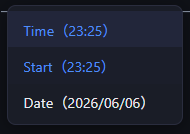
Open a text file, enable editing, place your cursor, then press Alt+S. The insertion menu will appear — select Time to insert the current time (e.g. 10:35) at the cursor.
Select Start to insert the time when the file was opened. This is useful as the first entry for the day.
To show the flow of time or add notes, you can press Alt+arrow key to insert ↓ or → characters.
Example entry
09:02  Check and reply to email
09:45  Draft weekly report
11:20  Team meeting
12:00  Lunch
13:10  Revise and submit weekly report
14:30  Research on [project name]
16:50  Organize tomorrow's tasks
17:30  End of work
“Time + what you did” is enough. If you want to add notes, indent with Tab and write below the main entry — it keeps things readable.
Tips for sticking with it
- Don’t aim for perfection — recording whenever you remember is fine. Gaps in the log are OK.
- Skim the week on the weekend — just glancing at a week’s worth of files in the tree gives you a clear picture of where your time went.
- Create a new file every morning — use the Save As button in the toolbar to duplicate yesterday’s file and change only the date.