Write During Meetings
When taking notes in a meeting, switching to a new app or hunting for a save location breaks your focus. With TextTree, a prepared folder and template means you can start writing the moment the meeting begins.
Folder Structure Example
Meeting Notes/
  2025/
    Project A/
      2025-01-15_weekly.txt
      2025-02-05_weekly.txt
    Company MTG/
      2025-01-20_all-hands.txt
Group by project, or keep everything in a single year folder — either works. Including the date in the filename makes notes easy to find later.
Prepare a Template
Keep a reusable meeting template ready. Copy it and rename it with the date before each meeting.
Date:
Attendees:
Location / Method:

## Agenda


## Notes


## Decisions


## Next Actions
Save this as _template.txt inside your meeting notes folder.
Inserting Timestamps During the Meeting
Adding a timestamp next to key moments makes it easy to answer “when was that decided?” later.
Right-click (Mac: Control+click) inside the editor and choose “Time”, or press Alt+S (Mac: ⌥S) to open the insert menu and add the current time with a single keystroke.
13:02 Anna proposed new feature
13:15 Bob raised concerns — needs investigation
13:28 Next meeting set for Wednesday
Reference the Previous Meeting While Writing
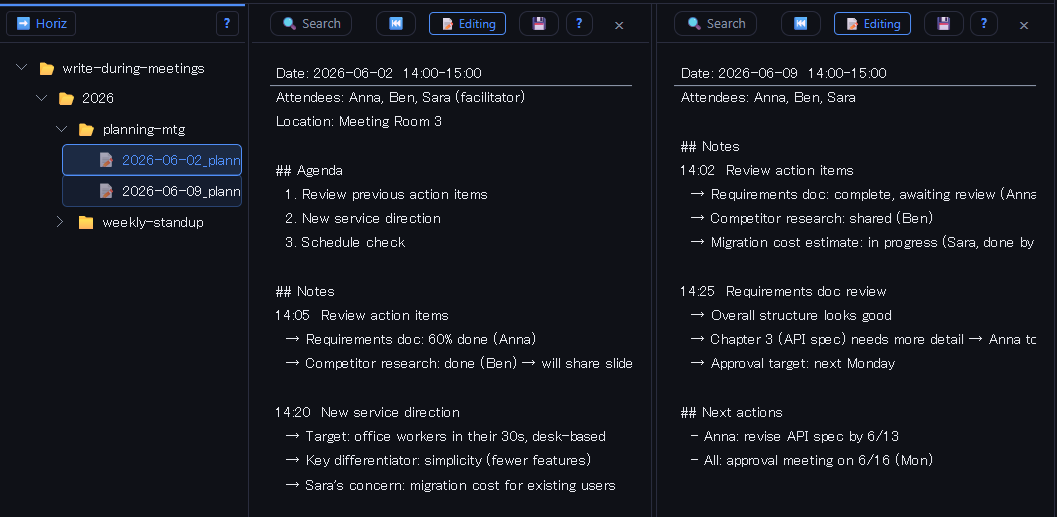
In the tree, Ctrl+click (Mac: ⌘+click) last week’s notes file, then click today’s file normally to view both side by side. This lets you check previous decisions and open action items while taking new notes.
After the Meeting
Once the meeting is over, read through the “Next Actions” section and turn each item into a concrete task. Combining this habit with KPT retrospectives helps you track whether meeting quality is improving over time.